 German
 Japanese
 Portuguese
 Korea
 Mexico
 Dutch


Types of Monitor Cables: A Complete Guide

Description of HDMI
HDMI (High-Definition Multimedia Interface) is a proprietary interface used to transmit uncompressed video and compressed or uncompressed audio data from a source device to a display device. It is widely used in consumer electronics such as HDTVs, Blu-ray players, gaming consoles, and computers. HDMI supports both video and audio signals, making it versatile for home theaters and gaming setups.

The latest version, HDMI 2.1, introduces significant improvements, including support for higher resolutions (up to 10K at 120 Hz), higher refresh rates (e.g., 4K at 120 Hz), and advanced features like Dynamic HDR, Variable Refresh Rate (VRR), and Enhanced Audio Return Channel (eARC). HDMI connectors are compatible with DVI signals, allowing easy conversion without signal loss. Additionally, HDMI supports Consumer Electronics Control (CEC), enabling users to control multiple devices with a single remote. It is commonly used in devices like HDTVs, home theaters, and gaming consoles, offering high-quality audio and video transmission.
Introduction of DisplayPort
DisplayPort is a digital display interface developed by a consortium of PC and chip manufacturers and standardized by the Video Electronics Standards Association (VESA). Introduced in 2005 as a replacement for older interfaces like VGA, FPD-Link, and DVI, DisplayPort is designed to connect video sources to display devices and can also transmit audio, USB, and other data types.

It uses packetized data transmission, enabling higher resolutions with fewer pins and allowing for future enhancements. The latest versions, DisplayPort 2.0 and 2.1, support up to 16K resolution at 60 Hz and HDR, with increased bandwidth. DisplayPort supports Multi-Stream Transport (MST), allowing up to 63 audio/video streams across a single connection, making it ideal for multi-display setups. It is backward compatible with other interfaces like DVI and HDMI through adapters. Some DisplayPort connectors also offer power delivery, reducing cable clutter. DisplayPort is favored for its high performance, multiple display support, and future extensibility, making it a preferred choice for modern computing and display applications.
Overview of VGA (Video Graphics Array)
Video Graphics Array (VGA) is a video display controller and graphics standard introduced by IBM in 1987 with the PS/2 line of computers. It became the industry standard for PC graphics in the early 1990s and remained widely used for many years. VGA transmits analog video signals, which can degrade over long distances or with interference. Originally supporting a resolution of 640x480 pixels and 16 colors, it was later extended to support higher resolutions (up to 2048x1536) and color depths (up to 24-bit).
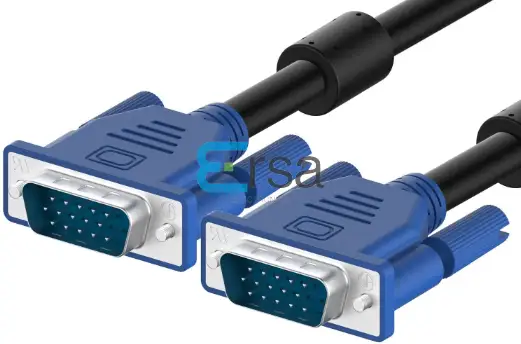
The standard VGA connector is a 15-pin D-subminiature connector, often blue in color. While it typically supports a 60 Hz refresh rate, some implementations can handle higher rates. Over time, Super VGA (SVGA) emerged, offering enhanced resolution and color depth. Though largely replaced by digital interfaces like DVI and HDMI, VGA remains used in legacy systems and specialized applications. Its advantages include widespread compatibility, cost-effectiveness, and simplicity, but it suffers from limited resolution, signal degradation, and lack of audio support.
Description of DVI (Digital Visual Interface)
Digital Visual Interface (DVI) is a video display interface developed by the Digital Display Working Group (DDWG) to transmit digital video signals from a source device, such as a computer, to a display device. It was designed to replace the analog VGA connector and offers higher-quality digital video transmission. DVI transmits digital signals, which are less prone to degradation compared to analog signals like VGA, making it ideal for large displays and multi-monitor setups. There are three types of DVI connectors: DVI-A (analog only), DVI-D (digital only, with single and dual-link options), and DVI-I (integrated, supporting both digital and analog signals).
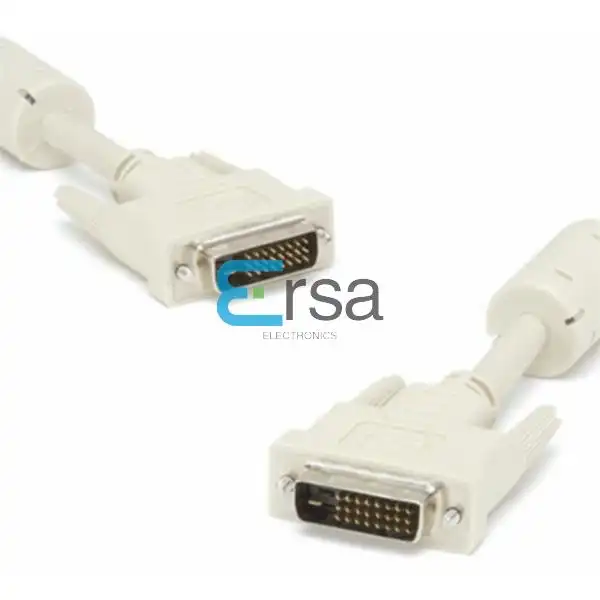
Single-link DVI supports resolutions up to 1920x1200 at 60 Hz, while dual-link DVI supports resolutions up to 2560x1600 at 60 Hz. DVI uses Transition Minimized Differential Signaling (TMDS) to transport pixel data, which is resistant to electrical noise. While DVI is widely used in computer monitors and projectors, it does not transmit audio, and newer standards like HDMI and DisplayPort generally offer higher resolutions and refresh rates. However, DVI's advantages include better video quality than VGA and compatibility with analog systems through DVI-I connectors.
Overview of USB-C
USB-C, also known as USB Type-C, is a versatile and compact connector developed by the USB Implementers Forum (USB-IF) to replace older USB connectors like USB-A and USB-B. It features a reversible design, making connections easier and reducing wear on ports. USB-C supports high-speed data transfer, including USB 2.0, USB 3.2 (up to 20 Gbps), and USB4 (up to 40 Gbps), making it suitable for applications like external SSDs and 4K displays.

It also supports Alternate Modes, enabling video output and other functionalities via protocols like DisplayPort, HDMI, and Thunderbolt. USB-C offers enhanced power delivery, supporting up to 240W (typically up to 100W for most devices), allowing it to charge laptops and power-hungry devices. Its universal compatibility works across different devices and operating systems. While USB-C provides convenience, versatility, and future-proofing, it has some limitations, such as potential compatibility issues and cable quality variance. Nonetheless, it represents a significant advancement in USB technology, combining data, power, and video capabilities in a single connector.
Introduction of Mini DisplayPort
Mini DisplayPort is a compact digital video interface developed by Apple and standardized by VESA, introduced in 2008 as a smaller alternative to the standard DisplayPort connector. It is ideal for thinner, lighter devices like laptops. Mini DisplayPort supports resolutions up to 2560 x 1600 at 60 Hz, with some versions capable of handling 4K at 60 Hz with the right hardware and adapters. It is compatible with standard DisplayPort devices through adapters, making it versatile for connecting to various monitors and projectors.
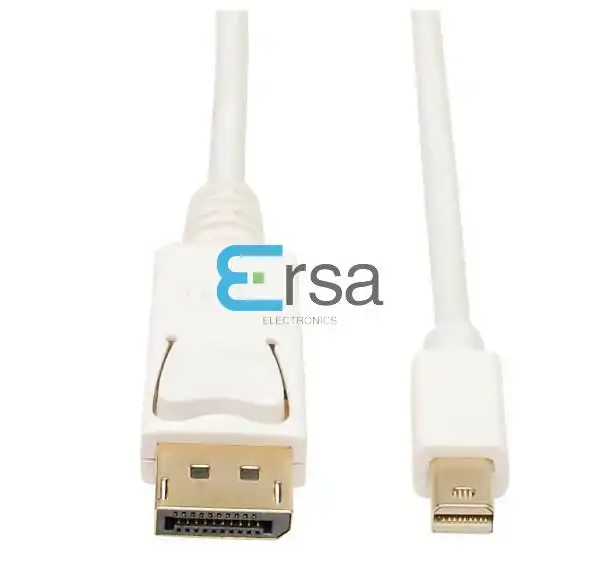
The protocol used by Mini DisplayPort offers similar bandwidth capabilities to DisplayPort, including support for Multi-Stream Transport (MST) and High Bit Rate 2 (HBR2). The compact design and high compatibility are advantages, but its resolution capabilities are limited compared to newer standards, and it lacks additional functionalities like USB or Ethernet, which are supported by Thunderbolt. Despite being largely replaced by USB-C and Thunderbolt in modern devices, Mini DisplayPort remains useful for connecting displays in portable devices and legacy systems.
Description of Thunderbolt
Thunderbolt is a high-speed hardware interface developed by Intel in collaboration with Apple, and it was introduced in 2011. It combines the capabilities of PCIe and DisplayPort, enabling fast data transfer, video output, and power delivery over a single connection. Thunderbolt 3 and 4 offer data transfer speeds up to 40 Gbps, with Thunderbolt 5 reaching up to 80 Gbps. It supports multiple 4K displays at 60 Hz and higher resolutions with newer versions. Thunderbolt also provides power delivery, with Thunderbolt 5 supporting up to 240W, making it suitable for charging laptops and powering devices.

One of its unique features is daisy-chaining, which allows the connection of up to six devices via hubs, reducing cable clutter. While Thunderbolt uses the same USB-C connector as USB-C, it requires specific certification for full functionality. Its advantages include high-speed performance, versatility (combining data transfer, video output, and power delivery), and the ability to connect multiple devices through daisy-chaining. However, Thunderbolt has some limitations, such as compatibility issues (not all USB-C ports support Thunderbolt), varying cable quality, and higher costs compared to USB-C. Overall, Thunderbolt is a preferred choice for professional applications and users needing advanced features beyond standard USB-C.
Comparison of Different Types of Monitor Cables
Here's a comparison of different types of monitor cables:
| Cable Type | Connector Type | Maximum Resolution | Maximum Refresh Rate | Audio Support | Video Support | Data Transfer Speed | Compatibility |
| VGA | DE-15 (Analog) | 1920x1200 | 60Hz | No | Analog | N/A | Older devices |
| HDMI | HDMI Type-A/B/C/D | 3840x2160 (4K) | 240Hz | Yes | Digital | Up to 48 Gbps | TVs, Monitors, Gaming Consoles, Computers |
| DisplayPort | DisplayPort | 7680x4320 (8K) | 240Hz | Yes | Digital | Up to 80 Gbps | Monitors, Computers, Graphics Cards |
| DVI | DVI-D/DVI-I/DVI-A | 2560x1600 (Dual Link) | 144Hz | No | Digital | Up to 9.9 Gbps | Monitors, Computers |
| Thunderbolt | Thunderbolt | 7680x4320 (8K) | 240Hz | Yes | Digital | Up to 40 Gbps | MacBooks, Monitors, External Storage, Docking Stations |
| USB-C | USB-C | 7680x4320 (8K) | 240Hz | Yes | Digital | Up to 40 Gbps | Laptops, Monitors, Smartphones, Tablets, External Storage |
Key Considerations:
Resolution and Refresh Rate: DisplayPort and HDMI offer higher resolutions and refresh rates, making them suitable for gaming and high-resolution displays.
Audio Support: HDMI, DisplayPort, Thunderbolt, and USB-C support audio, while VGA and DVI do not.
Compatibility: Choose a cable based on the ports available on your device and monitor.
Bandwidth: DisplayPort and HDMI 2.1 offer higher bandwidths, which is ideal for demanding applications like gaming and 4K video streaming.
In Summary
Monitor cables differ in video quality, data speeds, and compatibility. HDMI supports both video and audio, with HDMI 2.1 offering high resolutions and refresh rates, ideal for entertainment and gaming. DisplayPort provides higher bandwidth for resolutions up to 16K and multi-display setups but lacks audio support. VGA is an older, analog standard with lower resolutions, still used in legacy systems. DVI delivers digital video, supporting resolutions up to 2560x1600, with different connector types. USB-C combines data transfer, video output, and power delivery in one compact connector, suitable for modern devices. Mini DisplayPort is a smaller alternative to DisplayPort, offering decent resolution support for portable devices. Thunderbolt offers high-speed performance, video, and power delivery, but is more expensive and requires certification. Each cable type serves specific needs, from everyday use to professional applications.
How to Choose the Right Monitor Cable?
Choosing the right monitor cable involves several considerations to ensure compatibility and optimal performance. Here’s a step-by-step guide to help you select the appropriate cable:
1. Identify Your Devices' Ports
- Check your computer's video output ports: Common ports include HDMI, DisplayPort, DVI, VGA, USB-C, and Thunderbolt.
- Check your monitor's input ports: Ensure they match the output ports on your computer.
2. Determine Your Needs
- Resolution and Refresh Rate: If you need high resolutions (e.g., 4K) or high refresh rates (e.g., 144Hz), choose cables that support these features: HDMI 2.1 for 4K at 144Hz; DisplayPort 1.4 or higher for high resolutions and refresh rates.
- Audio Requirements: If you need audio, use HDMI or DisplayPort, as they support both video and audio. DVI and VGA do not support audio.
3. Consider Additional Features
- Power Delivery: If you want to power your monitor or laptop through the cable, consider USB-C or Thunderbolt.
- Multi-Monitor Support: DisplayPort is ideal for multi-monitor setups due to its multi-stream capability.
4. Choose the Right Cable Type
- HDMI: Best for general use, especially with TVs and consumer electronics.
- DisplayPort: Ideal for high-performance applications, including gaming and professional use.
- DVI: Suitable for older systems or specific refresh rates like 144Hz at 1080p.
- VGA: Only for older systems with no digital options.
- USB-C/Thunderbolt: Versatile for video, data, and power.
5. Purchase from Reputable Brands
- Ensure the cable is certified for its intended use (e.g., DisplayPort Certified) to avoid quality issues.
6. Check Cable Length and Quality
- Ensure the cable is long enough for your setup and made from high-quality materials to prevent signal degradation.

Related Articles
- ·Qualcomm PM8350 vs. PM8350C: Architecture, Features, Applications, and Selection Guide
- ·Qualcomm PM8150 vs. PM8150B vs. PM8150L: Functions, Architecture, Applications, and Selection Guide
- ·SGM41541 vs. SGM6605: Battery Charger and Synchronous Boost Converter Comparison
- ·ADI LTM4630A vs. LT8645S: Power Module and Silent Switcher Regulator Comparison
- ·Richtek RT8206A vs. RT9013: Architecture, Specifications, Applications, and Design Considerations
- ·MPS MP2657, MPQ6610GJ-AEC1-Z, and MP2856: Identification, Functions, and Application Comparison
- ·TPS6594-Q1 vs. TPS65219-Q1 vs. TPS653860-Q1 vs. LP87745-Q1: TI Automotive PMIC Comparison
- ·Electronic Components Monthly Market Report
- ·MediaTek MT6369, MT6360, MT6365, and MT6375: Functions, Architecture, and Selection Guide
- ·Southchip SC8547, SC8551, and SC89890: Charging Architecture, Key Differences, and Selection Guide
 FAQ